eGPU Extension Cable
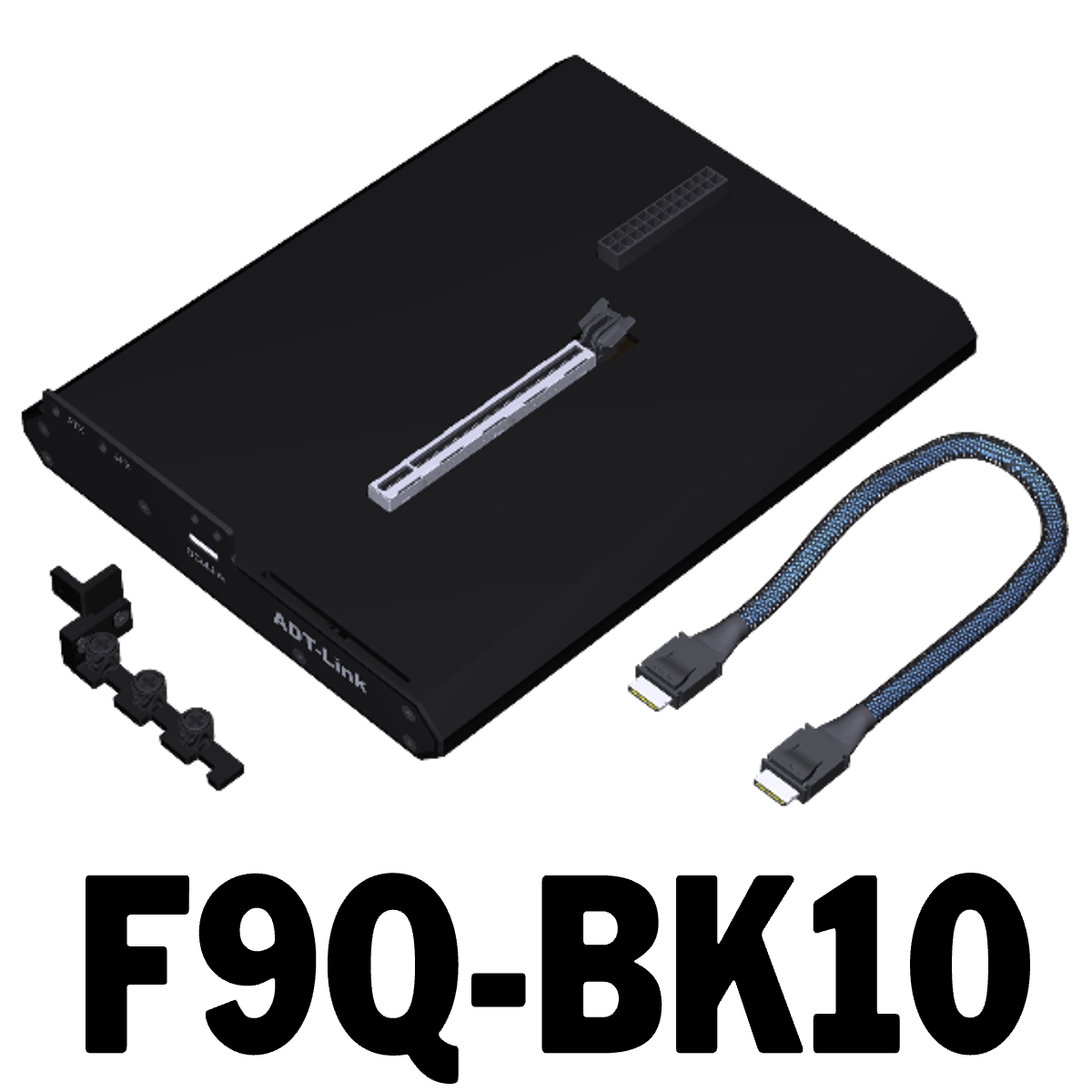
F9Q-BK10
- Product ID:F9Q-BK10
- Interface: Oculink / PCIe x16
- Shelf time:2026-02-05
- Transferspeed:PCIe 4.0 x4, gen4, 64G/bps (Max.)
- Product description: ADT PCIe 4.0 Oculink(SFF-8611/SFF-8612) to x16 eGPU Adapter
 |
ADT-Link Oculink(SFF-8611/SFF-8612) to PCI express x16 eGPU Adapter
Brand name: ADT-LINK
Product name:Oculink(SFF-8611/SFF-8612) to PCIe x16 eGPU Adapter
Product model: F9Q-BK10
Transferspeed:PCIe 4.0 x4, gen4, 64G/bps (Max.)
Wire length: 50cm
Application: eGPU for NUC / ITX / STX / Notebook PC
Friendly reminder: Oculink does not support hot swapping
Product advantages: Oculink is an interface transferred from the NVME solid-state drive slot of the computer motherboard. NVME uses a pure PCIe channel, so the Oculink external graphics card dock also uses a PCIe channel with little performance loss. Compared with the traditional Thunderbolt transfer solution, Oculink's effective bandwidth can reach 64Gbps in the case of PCIe 4.0 x4, far exceeding the Thunderbolt solution.
ADT F9G-BK7 series Part-Number Description:
Part-Number
Description
Bandwidth
F9Q-BK10
Oculink SFF-8612 Female to PCIe 4.0 x16 Female adapter+SFF-8611 male to male Oculink cable
PCIe 4.0 x4 (64G/bps)
Test data:
Test platform: 7600x + 4070+Xingu 850W power supply
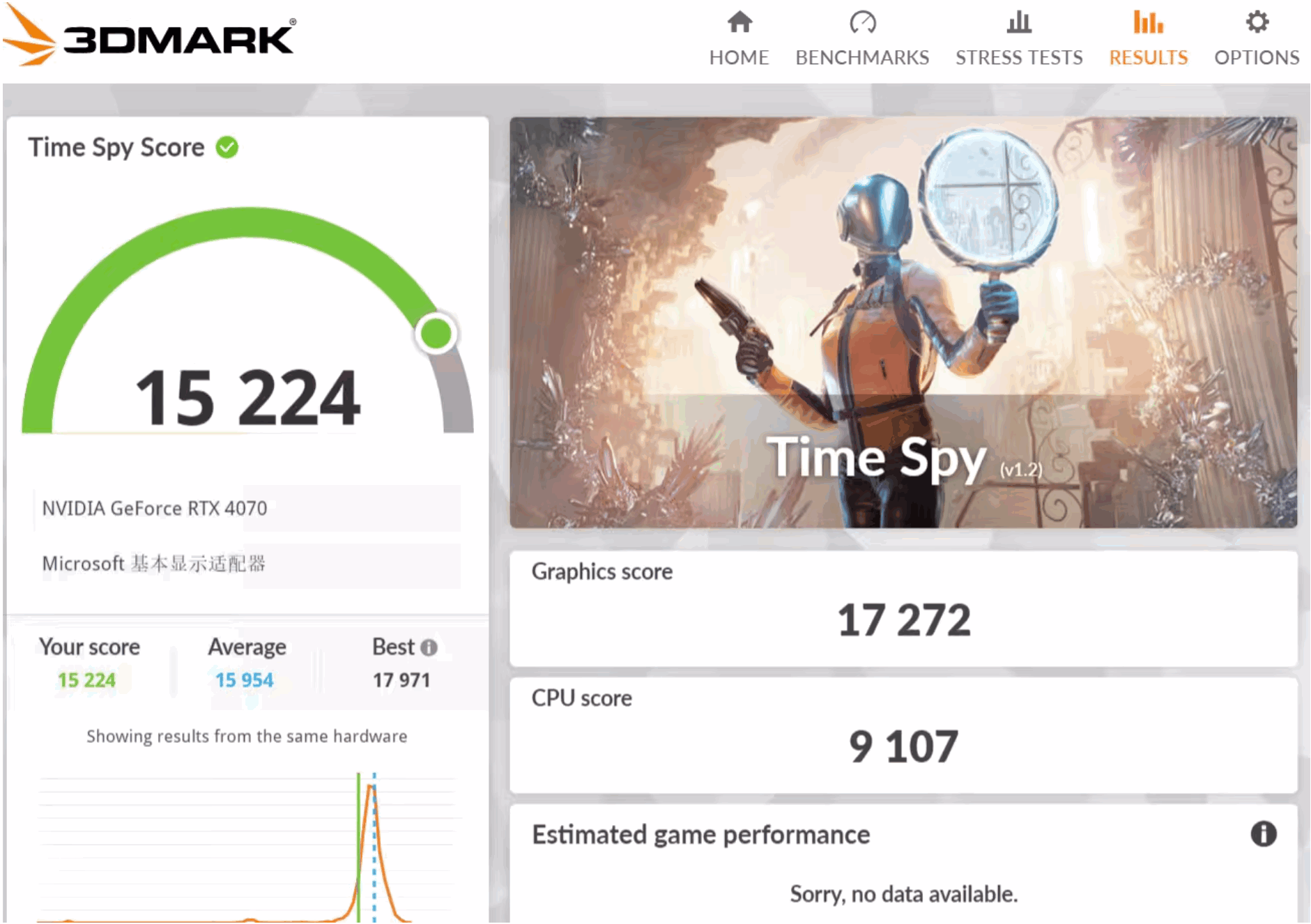
Test platform:7600x + F4C + F9Q-BK10 + 4070 +Xingu 850W power supply
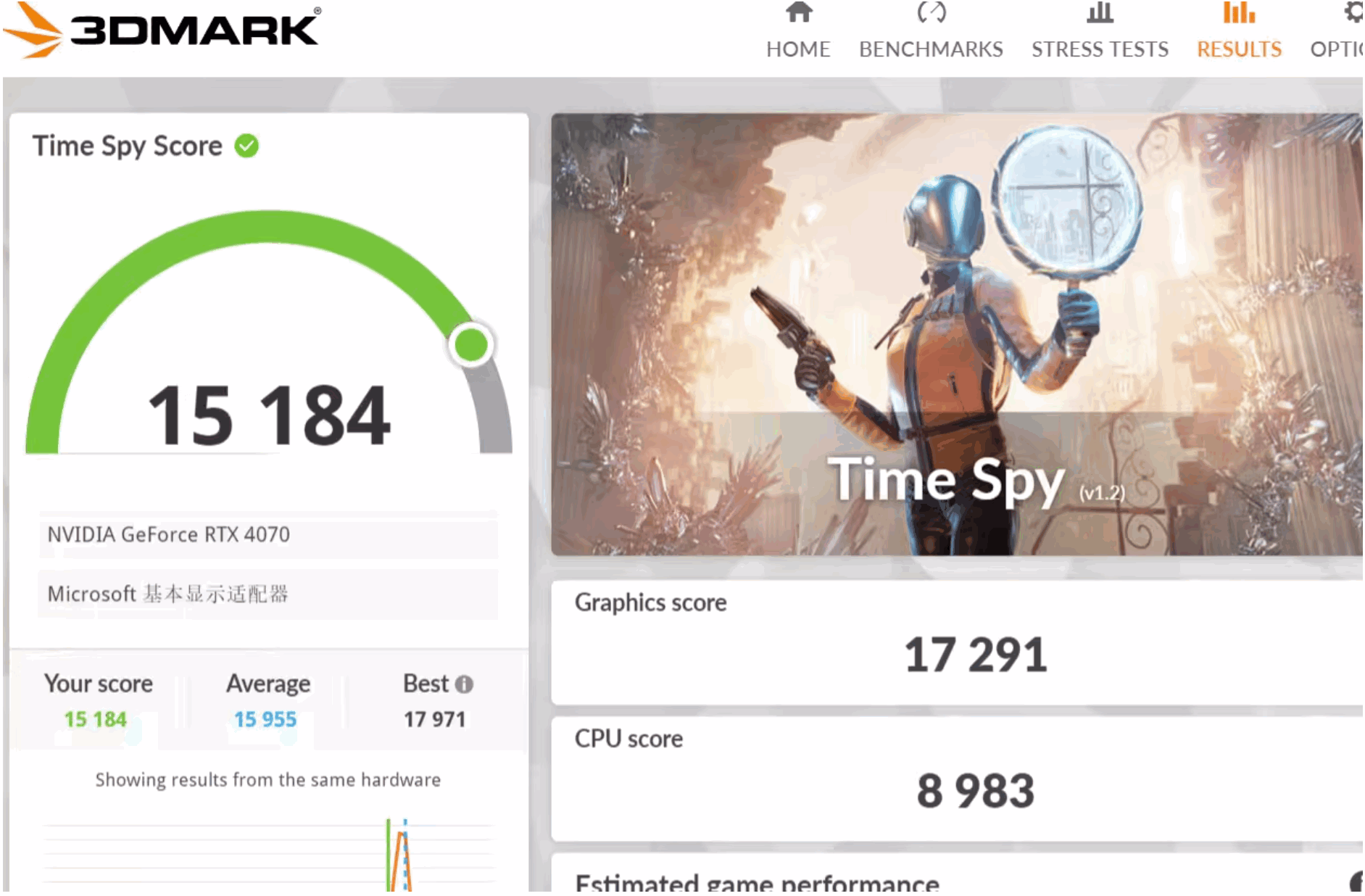
Test Results: In actual testing on the same platform, using the F4C+F9Q-BK10 adapter, the 3DMark graphics card benchmark score only showed a 1% difference.
Bandwidth Test:
Test Platform: Minisforum UM790 XTX (Win11)
Test Equipment: ADT-F9Q-BK10 + 4070 (OCuLink interface)
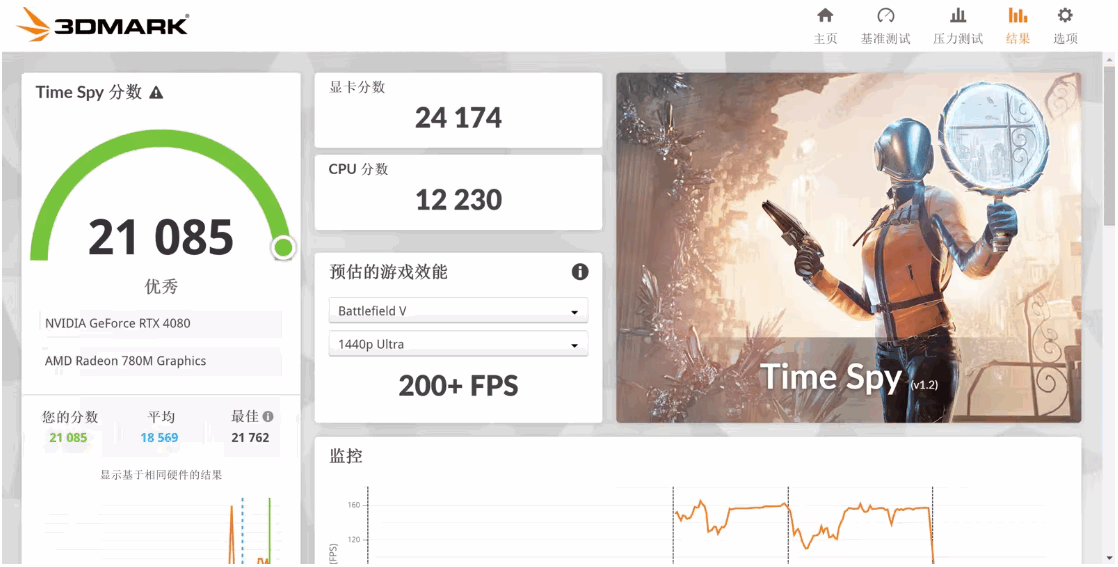
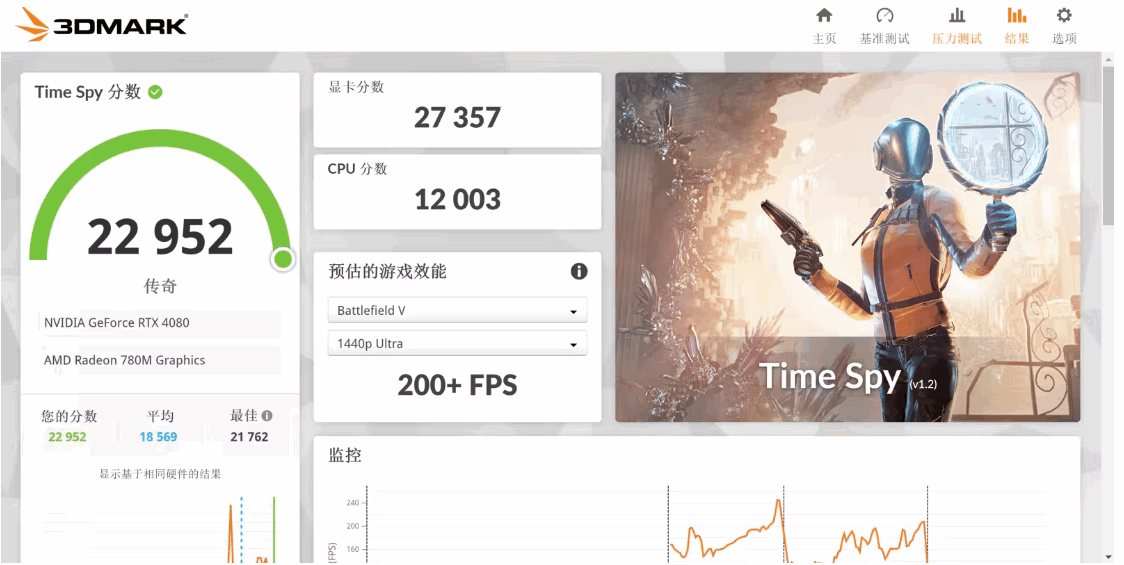
Test Results:
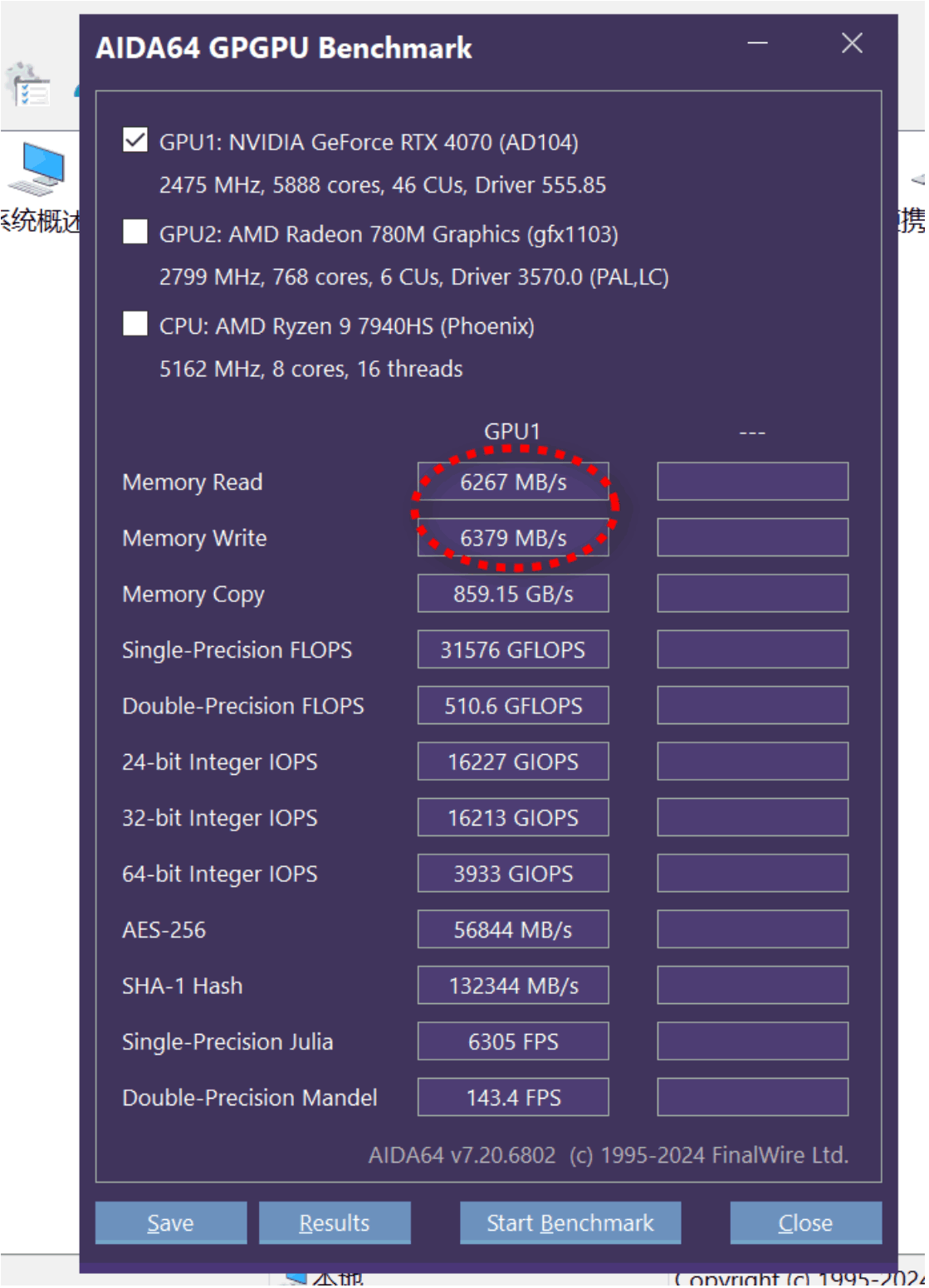
4080 internal display 3DMark benchmark scores.
4080 external display 3DMark benchmark scores
Q&A:
What are the differences between ADT F9G and F9Q-BK10?
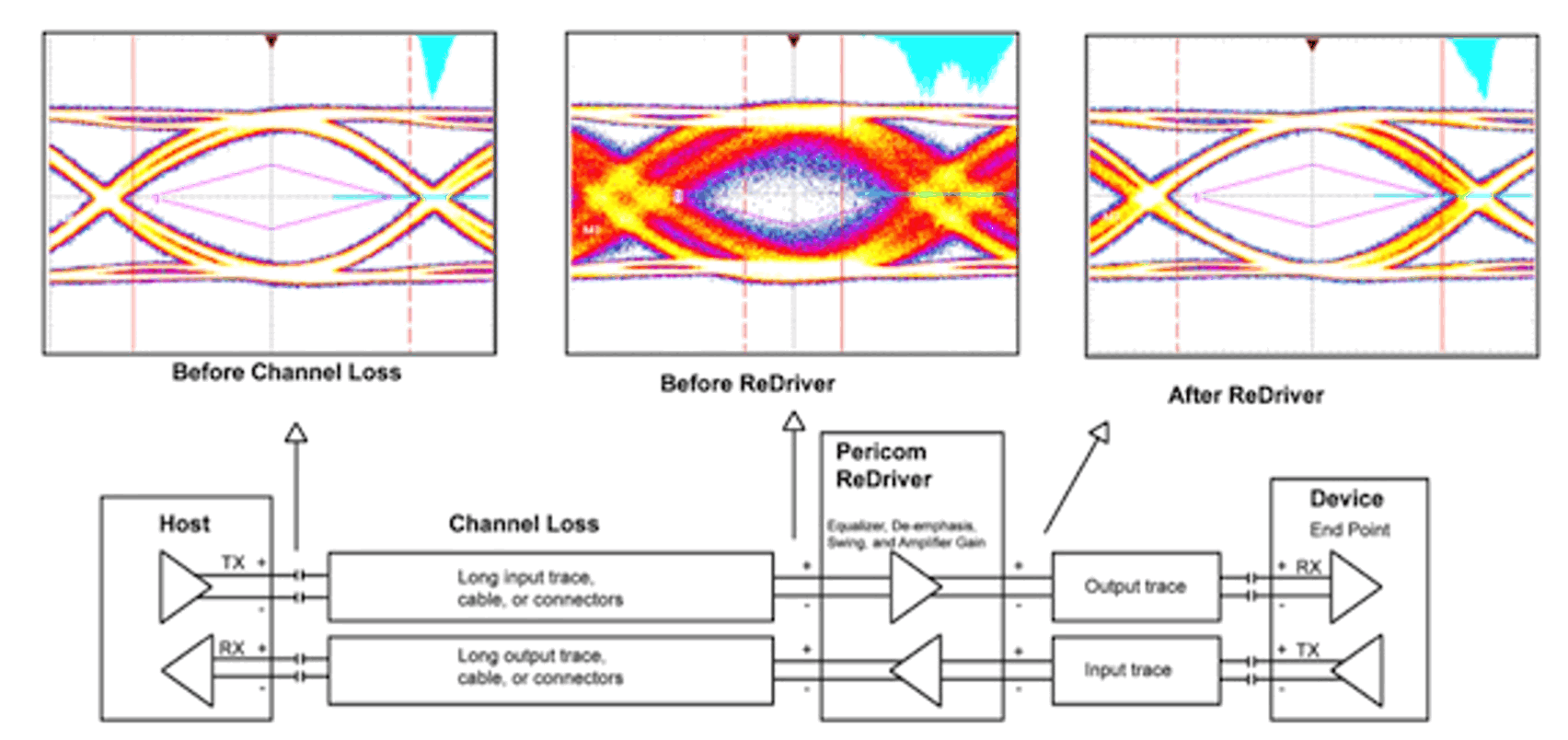
The F9G does not have a chip, while the F9Q-BK10 model has a chip, utilizing a PCIe Redriver signal repeater (Repeater IC). This chip can regenerate the signal, improving its quality and reducing the error rate during signal transmission. It also supports longer cable lengths. See the diagram below for reference:
What power supply options are available?
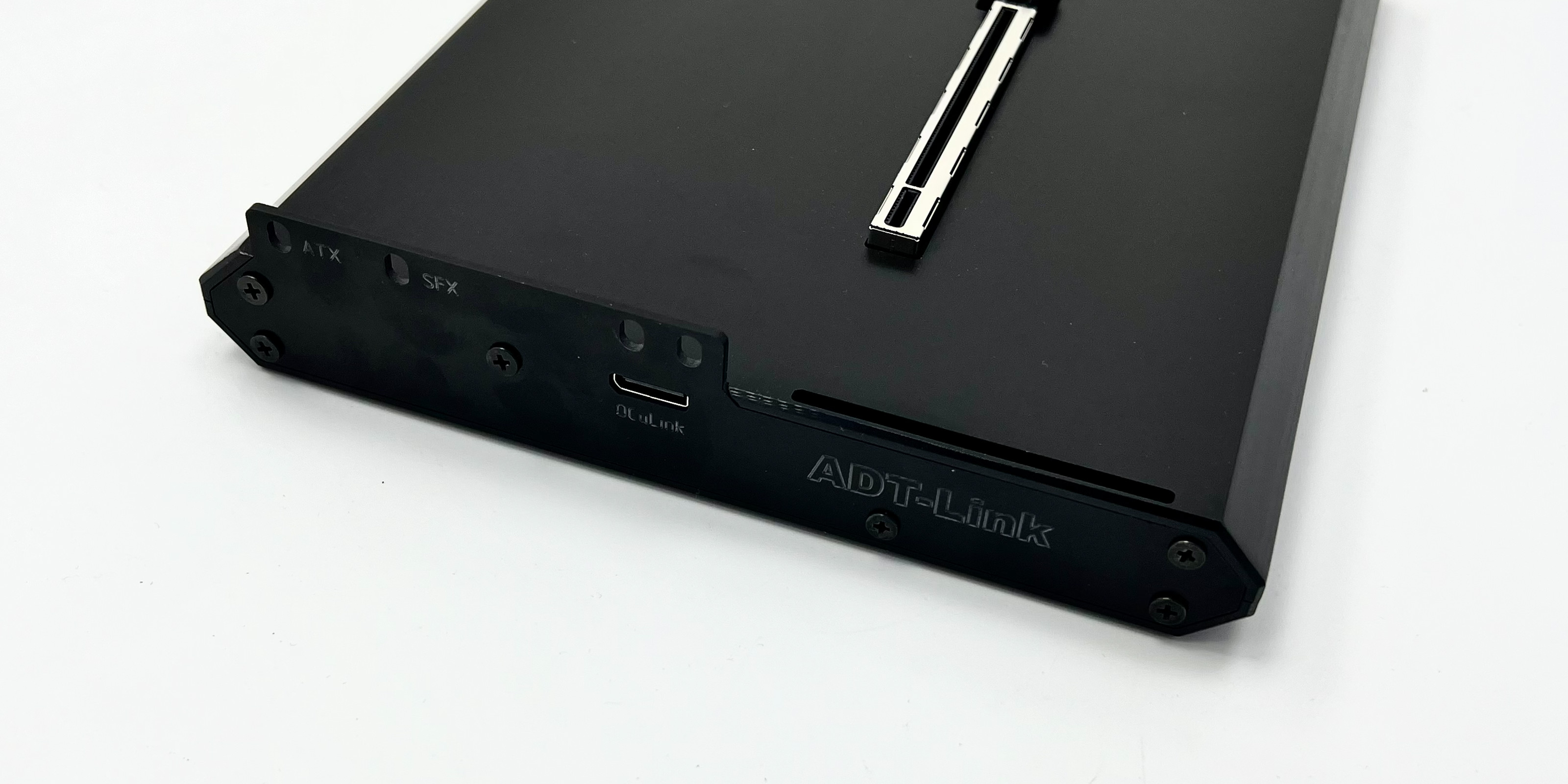
It supports standard ATX and SFX power supplies (including SFX-L). The power supply wattage should be selected based on the graphics card requirements.
What are the functions of the switches and indicator lights on the graphics card dock?
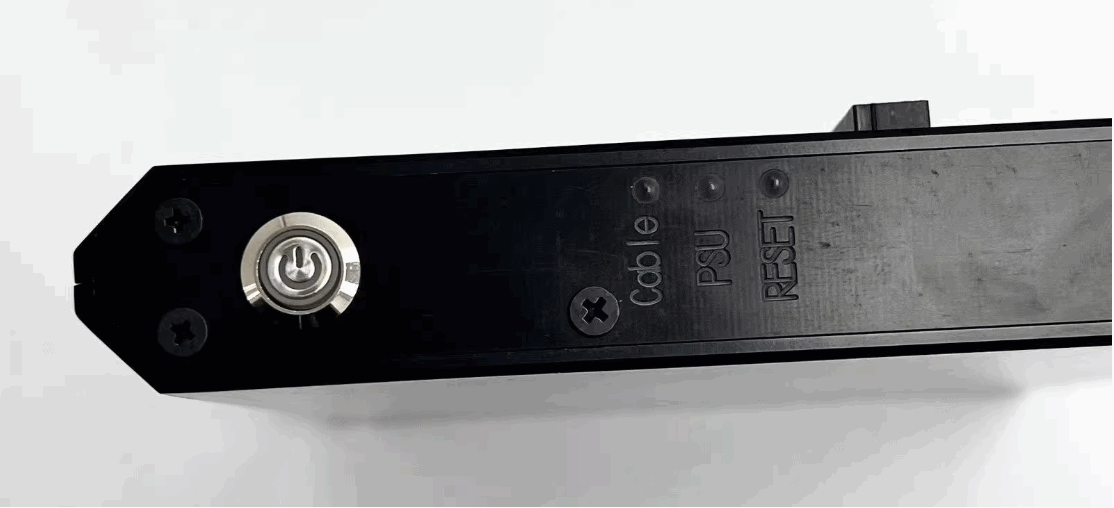
There is a push-button switch on the side of the graphics card dock. Under normal circumstances, the graphics card dock will power on with the computer, and the switch will also light up. If you are not using our company's adapter board and cables, the graphics card dock may not power on with the computer. In this case, you need to press the switch to power on the graphics card dock before turning on the computer for normal use. OCuLink does not support hot-swapping; please turn the graphics card dock switch on or off only when the computer is powered off.
The Cable light indicates cable detection; some cables not from our company may cause the Cable light to remain off. The PSU light indicates the power supply status; a lit light means the power supply is working normally. Otherwise, please check if the power switch is on or if the cables are properly connected. Additionally, the PSU light may remain lit after turning off the power switch; this is normal. The power supply has capacitors, and the PSU light will turn off after the capacitors discharge. The RESET light will normally flash once when the computer is turned on and off. If it remains constantly lit, it means the graphics card dock is not starting correctly. Please check if the interface is securely connected or check the relevant settings in the motherboard BIOS.
During use, the switch is pressed and the PSU light is on, and the RESET light is off; this is the normal state. When these three indicator lights are on, the Cable light being off does not affect normal use.
How to resolve the issue where a Lenovo series computer with an external graphics card dock powers on but the system doesn't recognize it?
Lenovo series laptops have a built-in OCuLink interface. When using this product, the indicator lights may be normal during startup, but the system may not recognize the external device. In this case, you can resolve the issue by pressing the switch to force the graphics card dock to start before turning on the computer.
Instructions for connecting a Lenovo series computer to an external graphics card dock:
https://www.adtlink.cn/download/ThinkBook外置显卡扩展坞连接安装说明.pdf
How to resolve graphics card errors in Device Manager after connecting an external graphics card?
Be sure to install the latest driver from the NVIDIA website. If a yellow exclamation mark appears, please reinstall the driver and restart your computer. If you still encounter a yellow exclamation mark (error code 43 or code 12), or errors such as the graphics card bandwidth information showing PCIe 1.1 x4, please refer to the solution provided by the foreign expert nando. The download link for the patch from the official
English website is as follows:
https://egpu.io/nvidia-error43-fixer
To apply the patch, simply run nvidia-error43-fixer.bat.
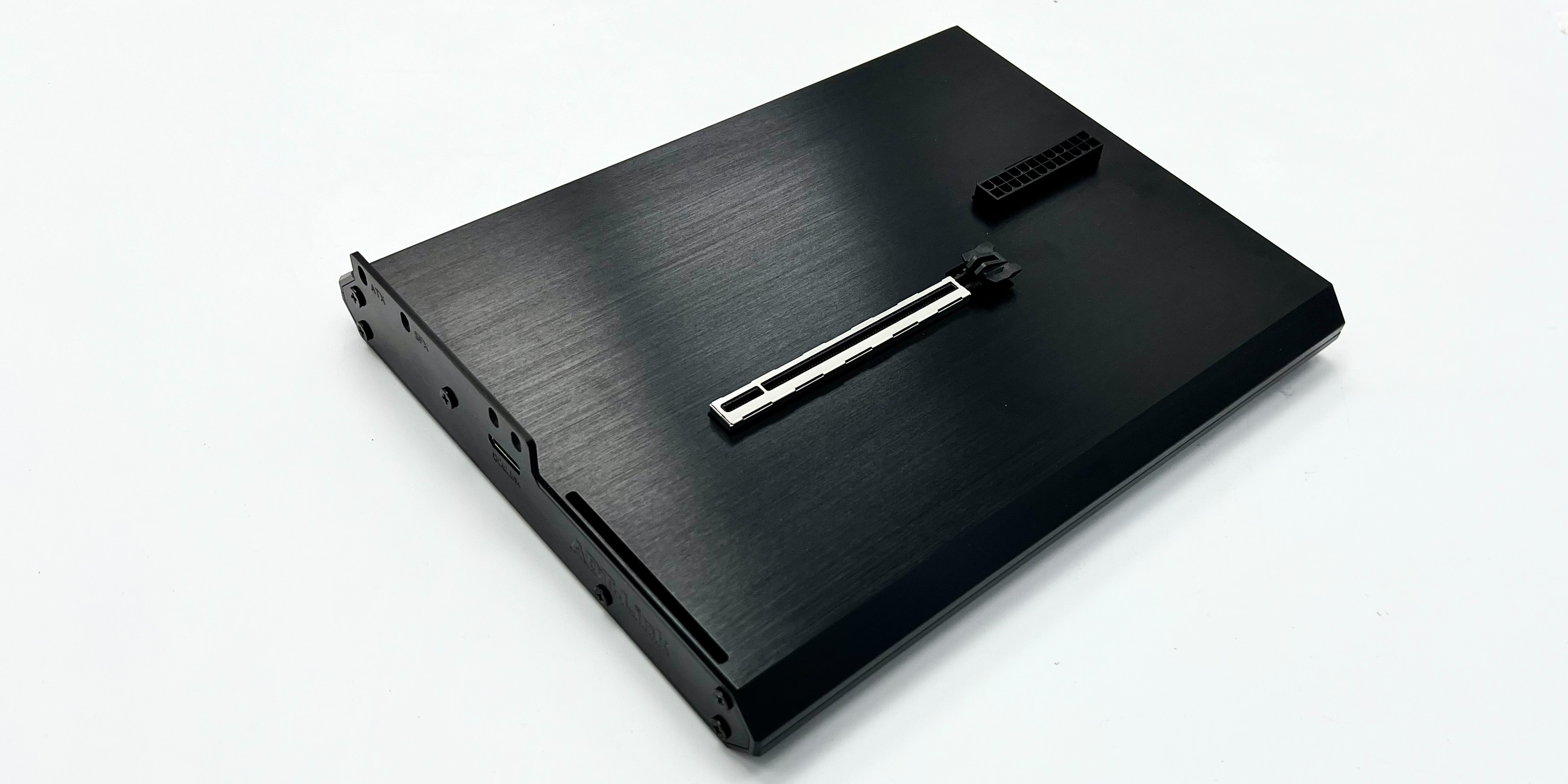
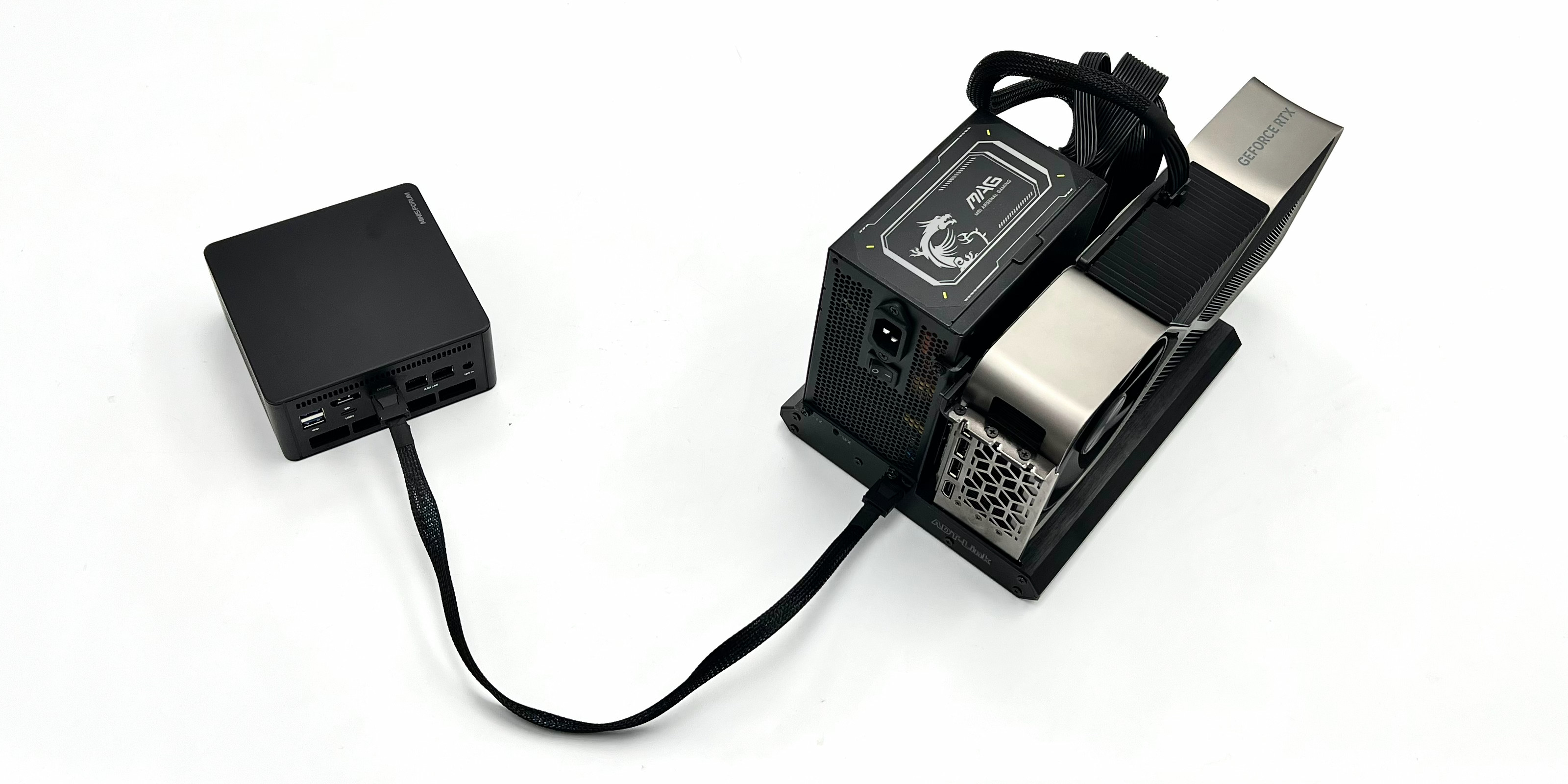
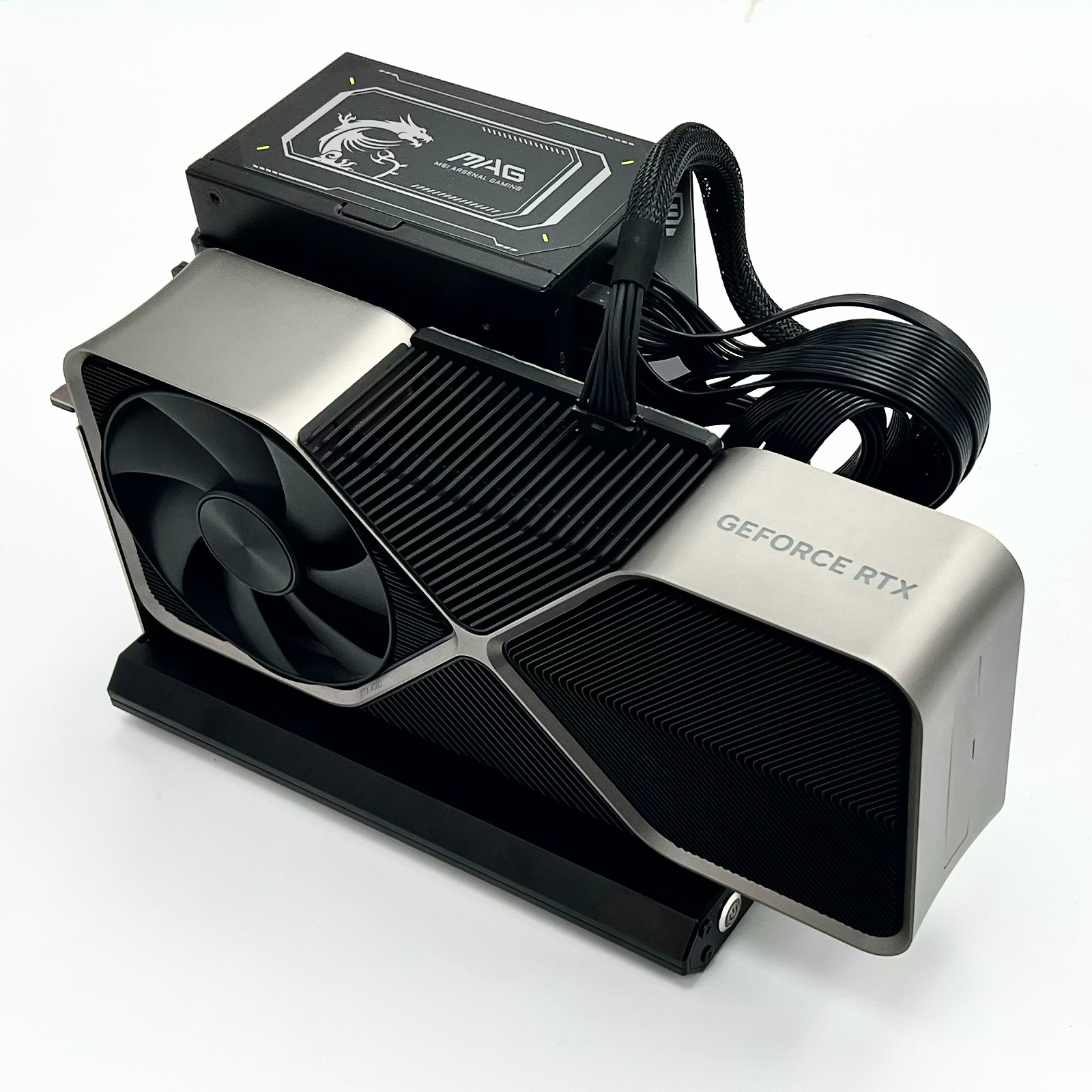
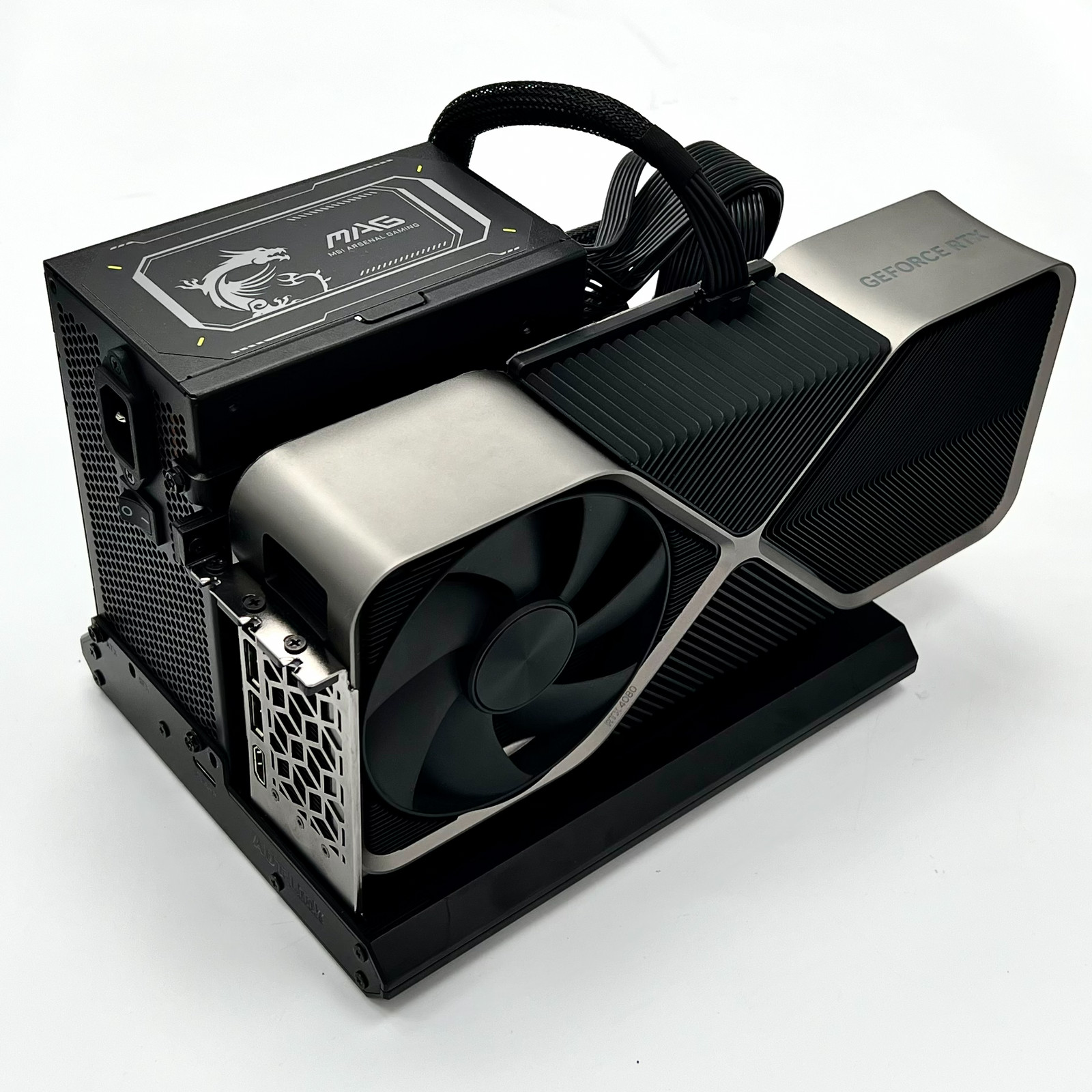
Photo:
Download:
To open 3D PDF files. Please use Adobe Reader DC software.
FTP: Los Angeles
3D model files download https://www.adt.link/download/ADT_F9Q_BK10_3D.zip
Installation Tutorial file download https://www.adt.link/download/BK10_Installation_Tutorial.mp4
FTP: Hong Kong
3D model files download 3D model files download https://www.adtlink.cn/download/ADT_F9Q_BK10_3D.zip
Installation Tutorial files download https://www.adtlink.cn/download/BK10_Installation_Tutorial.mp4
WebShop:
https://www.adt.link/product/F9Q-Shop.html
Related Products
Categories
- PCIe x1 Extension Cable
- PCIe x4 Extension Cable
- PCIe x8 Extension Cable
- PCIe x16 Extension Cable
- M.2 NVMe Extension Cable
- M.2 WiFi Extension Cable
- mini-PCIe Extension Cable
- OCuLink/AI Cable
- PCIe/USB Adapter
- GPU Extension Cable
- HDMI Extension Cable
- DP Extension Cable
- SD Card Extension Cable
- USB Extension Cable
- CFexpress Extension Cable
- FPC Extension Cable
- Other
- Discontinued
Latest News
Contact Us
Contact: adt-sales@adt.link
Phone: +86-13917664762
Tel: 021-65312041
Add: